931-BL / Resource center / Store manager setup
Two ways to print from qrinto.com on your own 931-BL: print a design straight away without logging in, or log in as store manager to set up trays and print customer orders. Both start with the same one-time install.
Pick a path to see only the steps you need. Both share the same one-time install of Multidriver and PrintTrays, so you can switch any time.
| Without login | Store manager | |
|---|---|---|
| Start from | MENU › Print on your own 931BL | MENU › For stores · Log in |
| What you print | A design you upload | Customer orders from the Orders queue |
| Choosing a tray | Pick it under Select Printer each time | Saved tray setup; Qrinto recommends the tray |
| Multidriver & PrintTrays | Required, once per PC | Required, once per PC |
Do this first. Multidriver gives each tray its own printer, so Qrinto can send every product to the right paper without changing settings. Why not the single driver?
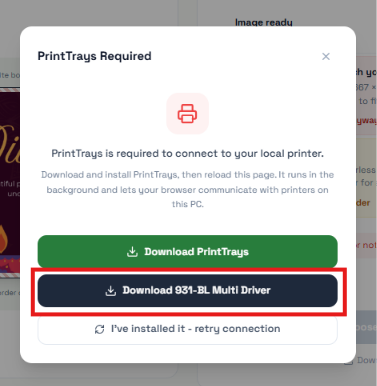
Get it from the 931-BL driver page. Qrinto's PrintTrays Required box also has a Download 931-BL Multi Driver button.
Choose Multi Driver, not Single Driver. The single driver shows only one printer, so you'd reset the paper settings on every job.
Open the downloaded file and follow the prompts. If Windows asks "Do you want to allow this app to make changes to your device?", select Yes.
When it finishes, Windows lists six printers for the one 931-BL.
No account needed. You'll upload your design and Qrinto will offer to install PrintTrays the first time.
Go to qrinto.com. At the top right, select MENU, then Print on your own 931BL.
Upload your design. The first time on this PC, a box titled PrintTrays Required appears. Select the green Download PrintTrays button and continue with Part C.
If a small box asks to let qrinto.com "Access other apps and services on this device", select Allow.
The store panel is where you set up trays and print customer orders.
Go to qrinto.com. Select MENU at the top right, then For stores · Log in.
Type your store's Email and Password, then select the black LOG IN button.
Tick Remember me on the store PC so you stay signed in. Use Forgot your password? if you need a new one.
PrintTrays is a small free program that runs in the background and lets qrinto.com talk to the printers on this PC. In each screenshot, the red box shows what to select. How does it work?
After logging in, select Trays in the top menu. The first time on this computer, you'll see PrintTrays isn't running on this PC. Select the green Download PrintTrays button.
A new tab opens on the PrintTrays download page. Select the blue Download for Windows button. The file saved is PrintTrays-Setup-1.2.0.exe.
The same installer is on noritsucanada.com and noritsu.com. Either one works.
Open PrintTrays-Setup-1.2.0.exe from your Downloads folder. If Windows asks to allow changes, select Yes. Then select Next, Install and Finish.
PrintTrays starts by itself in the system tray. No window opens, and that's normal.
Go back to the PrintTrays tab in your browser, or open the PrintTrays connection page. Select the blue Connect to PrintTrays button.
The first time, the page says Couldn't reach PrintTrays. That's expected on a new install. Select Trust PrintTrays's certificate.
If the browser asks to "Access other apps and services on this device", select Allow.
A small window says "Your connection is not private". This is expected. Select Advanced.
Only continue if the address in that window is 127.0.0.1:8181. That address is this PC, where PrintTrays runs. Never do this for any other website.
Select the link Proceed to 127.0.0.1 (unsafe). The window closes itself after about a second and the page reconnects on its own.
You'll see a green message: Connected to v1.2.0 — printer(s) found. Setup is complete.
With PrintTrays connected, every tray of your 931-BL is listed on the print screen.
Return to your qrinto.com tab and press F5. You'll see PrintTrays connected and your trays listed under Select Printer.
Read the checks above the list. Paper size doesn't match and Not edge to edge (E2E) warn you before you waste paper; tick the box to print anyway.
Select the tray that has the right paper, for example Noritsu 931BL (Tray 3) for 4 × 6 in. Use Settings on the selected tray to check size, orientation and color. Set Copies, then select Print 1 copy.
Printing the same products often? The store manager path saves each tray's setup so you don't pick settings every time.
Do this once, and again only when you change the paper in a tray. Qrinto uses it to recommend the right tray for every order.
Return to the qrinto.com tab and press F5 to reload. On the Trays page, turn a tray's switch green so it appears as a printer for orders.
To change its paper size, orientation or color, select Change.
If a tray is missing, select Rescan.
A window shows Paper Size, Orientation, Duplex and Color for that tray, plus scale and paper source. Match them to the paper that's physically loaded, then select Apply.
When all your trays are set, select Save tray setup at the bottom of the page.
Example: MP Tray for 4 × 6 in E2E prints, Tray 2 for 5 × 7.25 in E2E cards in landscape. Settings marked LIVE are sent to the printer.
This is your everyday routine. Every new customer order appears in Orders.
Select Orders in the top menu. Each new order shows the product, size, card style, orientation and amount to collect at pickup. Select the green Print on 931BL button.
The Pick a tray window lists every tray that matches the order. The RECOMMENDED tray is already selected, so usually you just select Print to….
If no tray is an exact match, the button turns red and says Print to… anyway. Select it to print on the closest tray regardless.
Seeing "anyway" often? A tray probably isn't set up for that size. Add or update one in Part D.
Need to print a one-off design instead of an order? See the no-login path.
PrintTrays 1.2.0 is a small bridge on your PC. qrinto.com in your browser talks to it at wss://127.0.0.1:8181, and it talks to the Windows printer driver.
Same installer from noritsucanada.com or noritsu.com.
Runs in the system tray and creates its own security certificate and key.
The browser doesn't trust the new certificate yet. Expected, not a bug.
Advanced › Proceed in a small popup that closes itself.
The page retries by itself and saves PrintTrays's key.
Printer list fetched live; size, color, copies and tray sent with each job.
PrintTrays listens only on 127.0.0.1. Nothing outside this computer can reach it.
A dedicated RSA key signs each message, so the page knows it really came from PrintTrays.
The key is saved after the first connection. A different key later means a different install, and the page asks before trusting it.
Print jobs go from your browser to PrintTrays on this PC, never to an outside server.
Download PrintTrays: noritsucanada.com/print-trays/download noritsu.com/print-trays/download
Look for the PrintTrays icon in the Windows system tray, near the clock. If it isn't there, open PrintTrays from the Start menu or install it again (C2–C3).
Then go to the PrintTrays connection page, select Connect to PrintTrays, and reload Qrinto with F5.
Check that PrintTrays is running: look for its icon in the system tray, near the clock. If it isn't there, open it from the Start menu or install it again (Part C).
Then select I've installed it - retry connection in the box, or reload with F5.
The certificate isn't trusted yet. Repeat C5–C7: Trust PrintTrays's certificate, then Advanced, then Proceed to 127.0.0.1 (unsafe).
Also check you selected Allow when the browser asked to access other apps and services. If you selected Block, open the site settings (the icon left of the address bar) and allow it.
The single driver is installed. Install the 931-BL Multi Driver (Part A), reload Qrinto, and select Rescan on the Trays page. MP Tray and Trays 1–5 should appear separately.
Make sure the 931-BL is on and connected, and that it appears in Windows under Settings › Bluetooth & devices › Printers & scanners. Then select Rescan.
Its switch is off, or the change wasn't saved. Turn it green, select Save tray setup, then reopen the order.
No tray exactly matches the order's size or paper. You can print to the closest tray, but the result may be scaled or have borders. To fix it for next time, set up a tray for that size in Part D.
The tray settings don't match what's loaded. On Trays, select Change on that tray, correct it, select Apply and then Save tray setup. Then use Print Again on the order.
Do Part C again on that computer. If the page asks whether to trust a new PrintTrays key, only accept it if you just installed PrintTrays yourself.